





Instant-Use Project Planner with No Login Required
In order to properly manage a project, effective management requires visibility of timelines and dependencies. Having visibility of timelines and dependencies often requires selecting between complex enterprise software or cumbersome spreadsheets.
We have developed an easy-to-use streamlined alternative. It is a free, browser-based tool that provides you with a way to create a well-formatted Project Plan with an interactive Gantt chart. You can easily export your Project Plan in PDF format or Gantt chart image file anytime throughout your project!
Key Benefits
- Zero Friction: There is zero friction to use this tool. There are no accounts to create, nor do you have to install software.
- Instant Visualization: You can instantly visualize your planned activities. Your task list automatically generates dynamic Gantt charts within this application.
- Privacy and Security: Your data is stored on your own computer system within your browser; it is not stored in a central location where someone else can access it.
- Easy Sharing: You can easily share your Project Plan with other members of your team by providing them with a link; they will not be required to create an account to access your Planner.
Why Did We Build This Tool?
This tool provides core project management functionality without having the cumbersome complexity of enterprise project management software.
Drag and Drop Scheduling
Plans change. It’s a fact of life. As such, sometimes it is necessary to modify the duration or start date of a particular task.
- You can modify the start date or reschedule a task by selecting the task bar on the Gantt chart and clicking and dragging the bar to the new date for that task. You will not have to modify the associated start date or finish date of that task in your task list. It will automatically be updated.
- You can modify the length of time for a task by selecting the edge of a task bar on the Gantt chart and clicking and dragging the edge of the bar horizontally until you’ve reached the desired length of time.
Data protection & portability
- Local storage saves all work to your browser’s local storage, and your tab will always have access to that information even after closing it out.
- Magic Links allow users to share plans without a central server. When you click the share link button, the project is reduced to a URL that can be downloaded and accessed anywhere.
Using the Project Planner
This guide will help you create and build a complete project plan.
Phase 1: Project Setup and Team Configuration
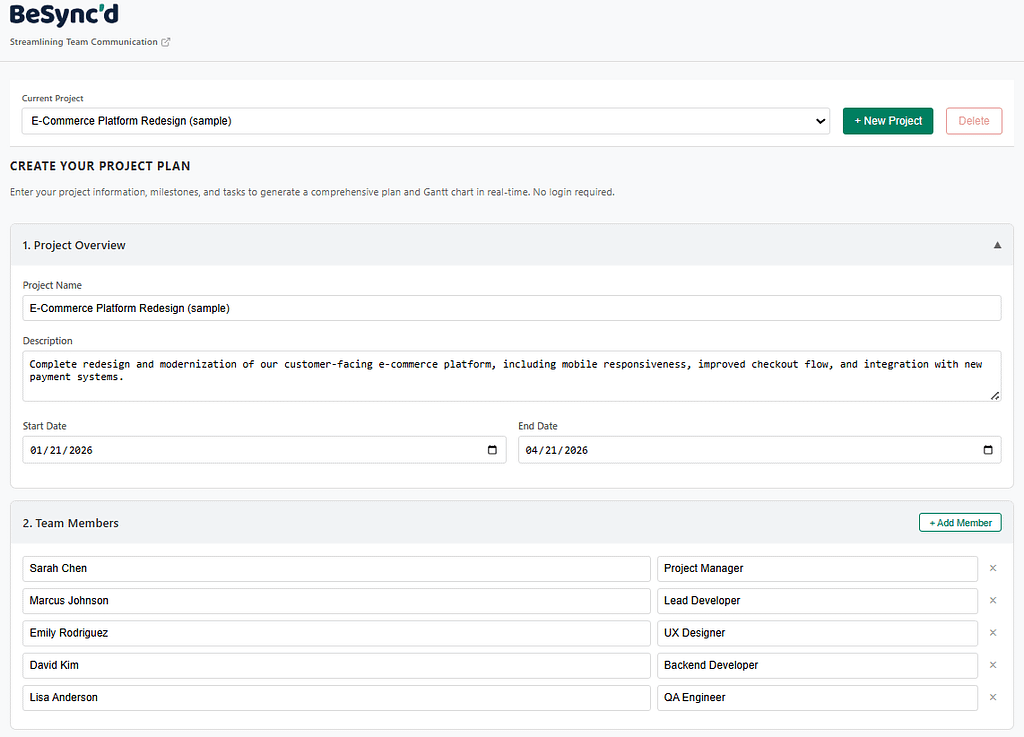
1. Define the Project Scope
- Begin with the “Project Overview” section.
- Project Name: Use specific titles (e.g., “Q3 E-Commerce Rebrand” rather than “Website”).
- Description: Define the objective (e.g., “Redesign checkout flow to increase conversion”). This clarifies the goal for all stakeholders.
2. Assemble Your Team
- Add resources in the “Team” section before assigning tasks.
- Recommendation: Include roles in parentheses, e.g., “Sarah (Designer)”, “Mike (Dev)”, to ensure a balanced skill distribution across phases.
Phase 2: Building the Timeline
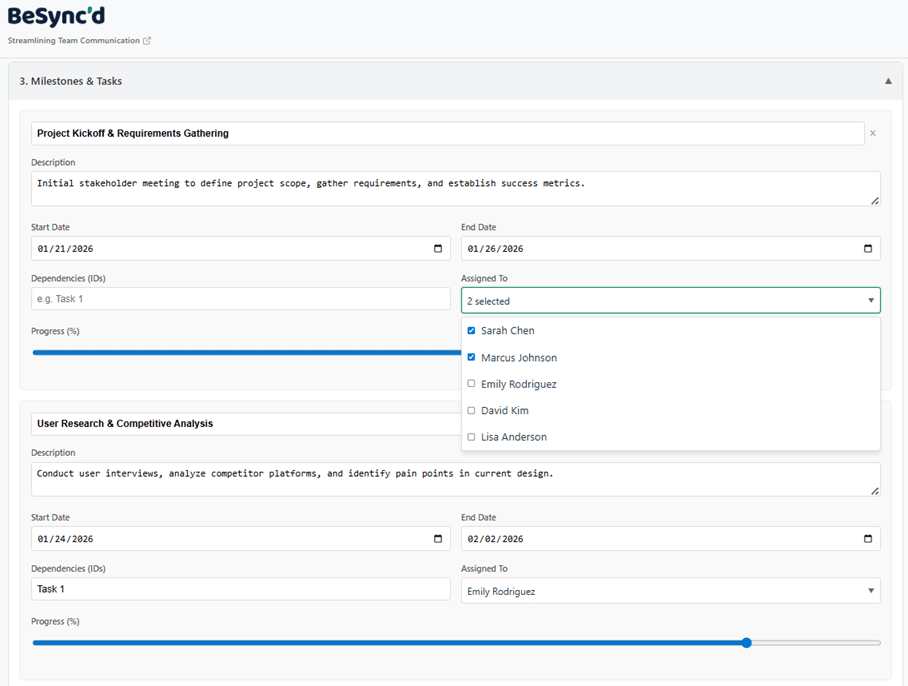
3. Work Breakdown Structure (WBS)
- Break the project into manageable components rather than broad goals.
- Instead of “Build App,” use: “Design Database Schema,” “Build API Authentication,” “Frontend Login Page,” “Integration Testing.”
4. Estimating Duration
- Tip: Include buffers. It is easier to adjust a timeline later than to manage a delayed schedule from day one. Use the date picker to set the Start Date, then estimate the End Date.
5. Assigning Ownership
Assign one or more team members to each task to ensure accountability.
Phase 3: Refining with the Gantt Chart
6. Reviewing the Logic
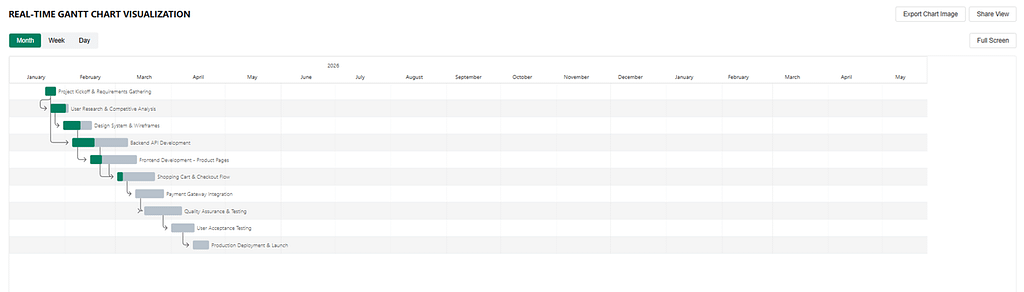
Switch to the Gantt Chart view to verify the sequence. Ensure tasks cascade logically (“waterfall”). A vertical wall of tasks starting simultaneously is generally unrealistic for execution. Drag bars to stagger them as needed.
7. Changing Views
The tool offers three view modes:
- Day View: For granular, short-term planning.
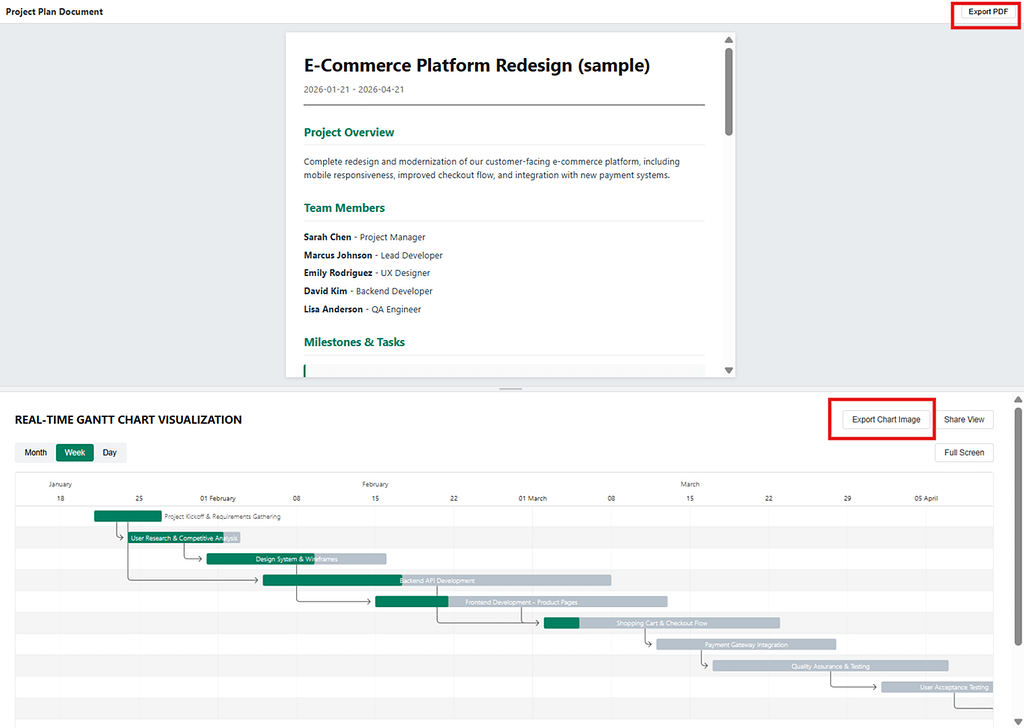
- Week View: Standard view for monthly or quarterly flows.
- Month View: High-level overview for long-term roadmaps.
Phase 4: Sharing and Exporting
8. Version Control with Magic Links
Since no account is required, the “Share Link” feature can serve as a version control system.
- Method: Create a plan, click Share View, and save the URL as “Plan V1”. Make changes for a different scenario, generate a new link, and save it as “Plan V2”. This allows you to revisit different iterations of your plan instantly.
9. Exporting Options
- Export Chart Image: Generates a PNG of the timeline, suitable for slide presentations.
- Export PDF: Creates a formal document with project description, team roster, and detailed task list, suitable for contracts or internal documentation.
Advantages of Client-side Architecture and Speed
The client-side architecture has significant advantages for teams that are security-conscious.
- Data Sovereignty: The project data actually resides in the local storage of the user’s browser rather than in a central database.
- No Data Tracking: There is no data tracking performed on the name of the project (or project content) for advertising purposes.
- Easy to Implement: Use of the product does not typically require IT department approval, since there is no software to install and no user account set up.
Frequently Asked Questions
Q: Is real-time collaboration supported? A: To maintain the privacy and free access model without requiring servers to host the web application, we do not support live concurrent editing. Instead, collaboration occurs by sharing links (pass-the-token model). When a user modifies a project, they will generate a new URL, and the modifications will be saved under the newly generated URL.
Q: What happens if I accidentally close my browser tab? A: Any work in progress is automatically saved in Local Storage. When you reopen the page, your project will be restored. We also recommend saving the ‘Share View’ URL so you can use that as a permanent record.
Q: Can I manage more than one project? A: Yes, the Dashboard allows you to create multiple separate projects, and you can switch between projects using a dropdown menu. Each project is independently managed.
Start Planning
A clear, visual plan will allow everyone involved to understand what must happen and when. An interactive tool takes the friction out of changing dates, making adjustments to timelines, and keeping tasks organized. Utilize it in any way that meets your needs, and allow it to individualize your work to allow you to improve your productivity while managing it more effectively.