





Use this tool to conduct risk assessments instantly.
The process of managing project risks can be the factor that separates success from failure; however, most risk management tools are either not available or too complicated to use.
To solve this, we created a free, browser-based tool that is simple and ready to use. It lets you identify, analyze, and visualize your project’s risks with an interactive Heatmap and Risk Registry. You can also export your risk assessment as a PDF or CSV file whenever you need.
What Is a Risk Assessment Tool?
A risk assessment tool helps you and your team identify potential project risks, assess their likelihood, and determine their likely impact. It gives you a clear, systematic, and visual way to turn risk awareness into practical action for your team.
In practice, using a risk assessment tool allows you to systematically list risks along with their likelihood and severity scores. You can then prioritize risks within a single location (typically using a risk heatmap). You can use this information to determine whether a particular risk:
- Requires immediate attention
- Needs to be monitored
- Can be accepted
The goal of this process isn’t to eliminate risks, but to use risk information together so you can make informed decisions before small problems become big ones.
At a Glance
- Zero Friction: No accounts to create, no software to install.
- Instant Visualization: Your risk data is plotted on an interactive heatmap as you enter it.
- Data Privacy: All data associated with the project is stored solely in the user’s browser; there is no central server for storage.
- Easy Sharing: Assessed information can be shared with stakeholders via a magic link with a unique URL that can be sent as an email, message, etc. Stakeholders will not have to log in to view the project status.
Why Did We Build This?
The purpose of this tool is to provide core risk management functionality without the complication of using full enterprise-level GRC (Governance, Risk, and Compliance) software for risk management.
Interactive Heatmap
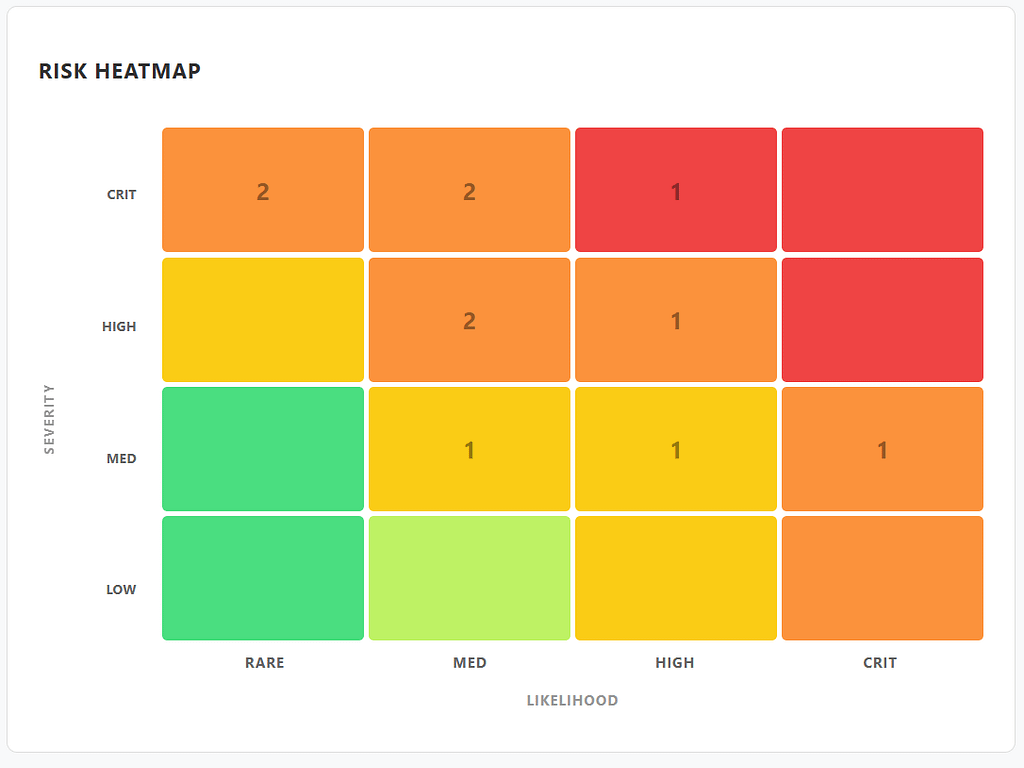
This displays the likelihood and severity ratings for specific risks, which are immediately plotted on the 4×4 Traditional Risk Matrix. This helps you quickly identify risks labeled as “Critical” and “High” priority, so you know which ones need urgent attention.
Comprehensive Registry
In addition to the Risk Score, the user can save information related to the risk through the description field, to ensure that the risk assessment is actionable and not simply a list of scores.
How to Use the Risk Assessment Tool
Follow the step-by-step guide to complete a risk profile for one or multiple projects:
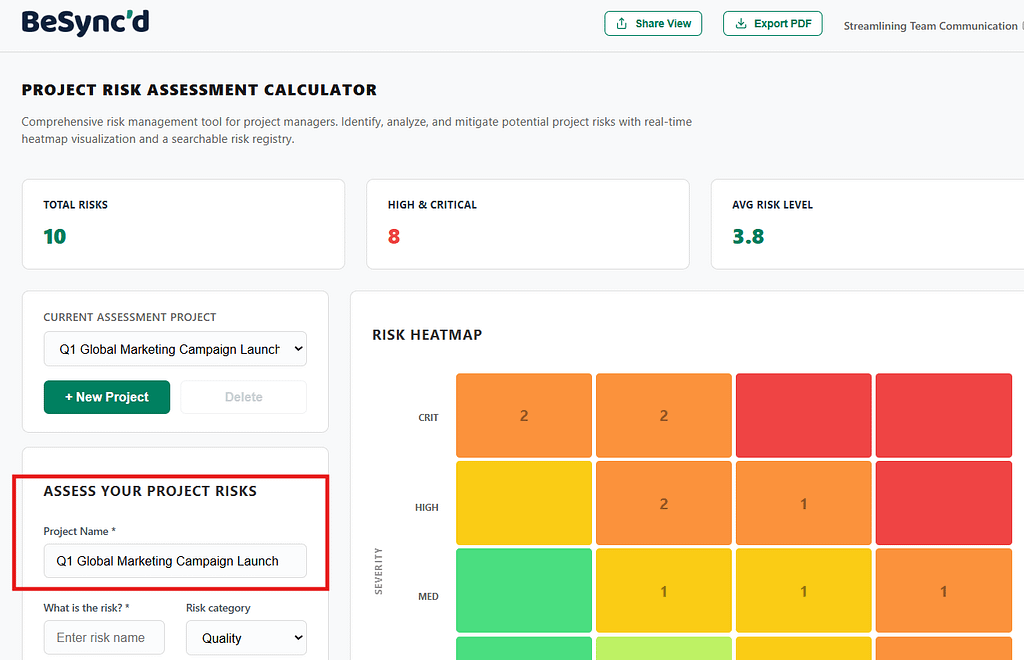
Phase I: Project Setup
Specify your project’s scope by entering its name, such as “Mobile App Launch v2.” Giving your report a clear name will help you organize and distinguish your different reports.
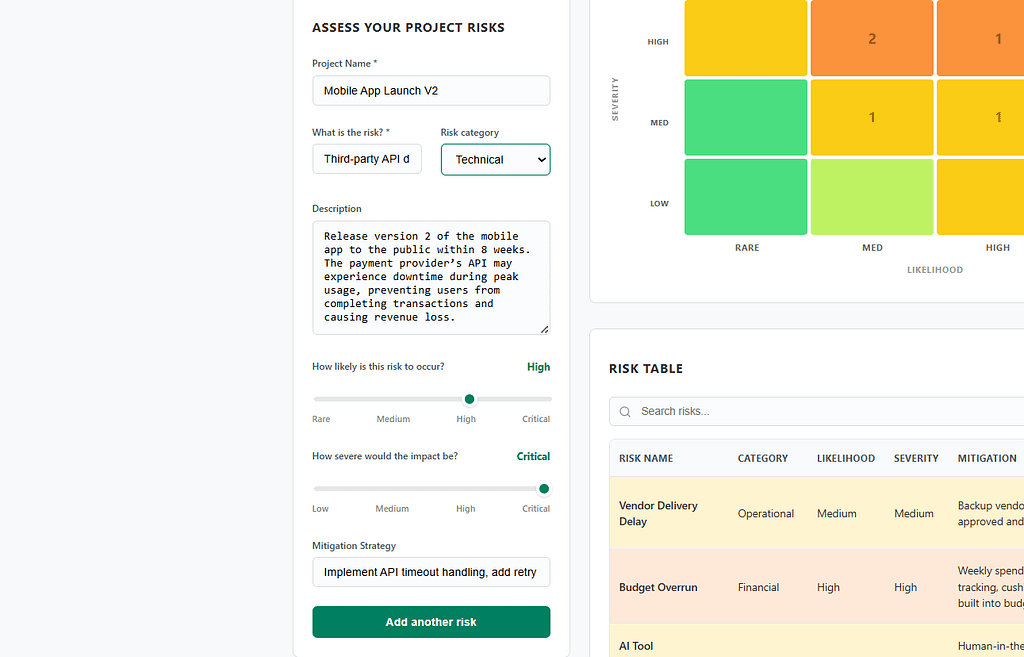
Phase II – Identification and Analysis
Identify the Risk
- Risk Name – be specific (for example, Third-party API downtime instead of Tech problem).
- Category – This is how the risk is categorized to help you organize it for reporting. The categories are:
- Quality
- Financial
- Operational
- Technical
- Description – Provide a clear description to inform project stakeholders about the nature of your risk, how it might impact them, and the overall project, including how severe the risk could be.
Scoring the Risk
Use the interactive sliders to score the risk. The tool will calculate the risk level automatically.
- Likelihood (1-4): range of how likely the risk is to occur (Rare to Critical).
- Severity (1-4): severity of impact on the project if the risk occurred (Low to Critical).
Plan for Mitigation Strategies
This is the key part of turning the risk into an actionable item by explaining how to prevent it or lessen its impact. For example, using a circuit breaker pattern and caching.
Click on add another risk to add this entry to the registry.
Phase III – Review and Refine
Analyze the Heatmap
Use the heatmap colours to understand risk priority at a glance:
- Red (Critical) – Immediate mitigation needed
- Orange (High) – suggest monitoring closely
- Green/Yellow (Low/Medium) – usually acceptable risks
Interactive feature
Click on a heatmap cell to filter the list below. The filtered heatmap will only display those risks with corresponding matched heatmap cell severity/likelihood.
Search & Filter Functionality
With multiple project risk options, use the ‘Search’ field above the project risk option table to quickly search by project risk name or project risk category.
Review Statistics
Check the summary cards for an overall health check:
- Total Risks: Total number of identified risks.
- High & Critical: Keep this total low.
- Average Risk Level: Keep a watch on whether the overall profile is trending up or down.
Phase IV: Sharing and Reporting
Share With Others
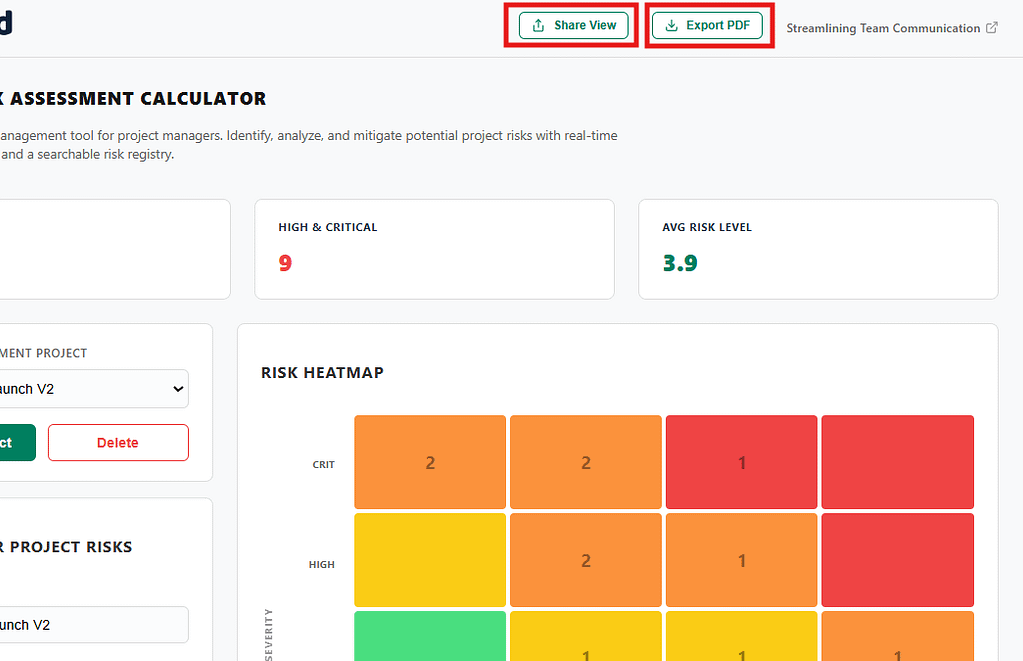
Click Share View to create a read-only link to the project risk assessment. Send this link to teammates so they can view the assessment without needing an account.
Export Report Options
This option creates a professionally formatted, printable document that includes the risk heatmap and the full risk assessment table. It’s ideal for project status meetings or for collecting approvals and sign-offs.
CSV
You can export the risk data for use in Excel or other spreadsheet programs, or import it into project management tools.
Security and Speed Benefits
Client-side architecture offers several benefits for teams focused on security.
- Data Sovereignty: All project data is saved in your browser’s local storage instead of a central database. This gives you more control over where your information is kept.
- Zero Tracking: All information stays in your browser. Your data is not saved to our servers and we do NOT collect or analyse any data you enter into our project tools. For tools that offer integration with our platform or other services, you will be required to opt into the specific data utilised and how it is utilised.
- No IT Gatekeeping: No installation or account provisioning means most teams can start using it without waiting for IT approval.
Frequently Asked Questions
Q: Does it support real-time collaboration? A: This tool runs entirely in your browser with no server-side storage, so real-time co-editing is not supported. Instead, use the Share View link to collaborate — recipients can view your assessment, and you can save updated versions of the project locally.
Q: What happens if I close the browser tab? A: Your work will be automatically saved in your Local Storage. If you re-open the same page, you will get your project back. We recommend saving the share view link as a permanent backup.
Q: Can I manage multiple assessments at once? A: Yes. The Risk Project Manager component allows a user to easily switch between different risks and projects.
Start Assessing
By taking a proactive approach to risk, you can help prevent project failure. Visualizing both the likelihood and severity of risks helps you focus your limited resources on the most significant threats. This tool turns vague concerns into a clear, prioritized action plan.